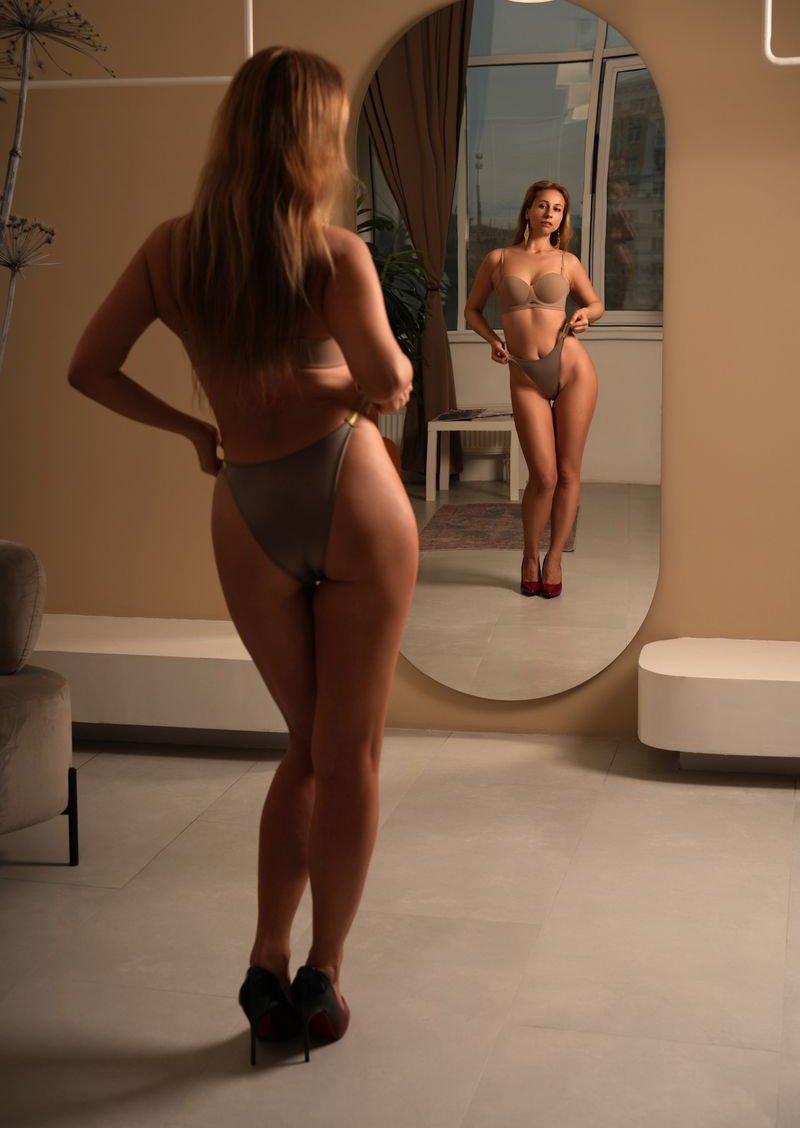
You have a picture you almost love. The pose is right, your face is right, but the top is the wrong colour or the background is a bit dull. Rather than starting again, you can edit it by describing the change.
How describe-to-edit works
Open a picture from your gallery, choose edit, and type what you want different. KinkAI changes only that part and leaves the rest of the picture as it was. Your face, your pose and everything you did not mention stay put.
Edits that work well
- Colour changes: "make the vest red", "change the dress to emerald green".
- Outfit swaps: "change the jeans to a black leather skirt", "change the top to a white shirt".
- New backgrounds: "change the background to a beach at sunset", "make it a hotel room".
- Small styling touches: "add red lipstick", "add a thin gold necklace".
Tips for better edits
Describe one change at a time. "Make the top red and move her to a beach and add a hat" asks for three things at once, and you will get better results doing them one after another.
Be specific about colour and material. "Red satin" is clearer than "something nicer". If an edit is not quite right, edit again with a small correction rather than a completely new instruction.
Topless and naked edits
If you have added your own topless and naked photos in your character settings, topless and naked edits use your own trained body, so the result matches the real you. These edits need the same one-off ID check as topless and naked pictures.
What an edit costs
Edits are paid in Kredits. Because you keep everything that already worked, editing is usually the cheapest way to turn a near miss into a keeper.
Next time a picture is nearly perfect, do not throw it away. Describe the fix.